Help Center
Welcome to the SeasonBox Help Center. Here you can find answers to frequently asked questions and tutorials on how to get the most out of SeasonBox.
Frequently Asked Questions (FAQ)
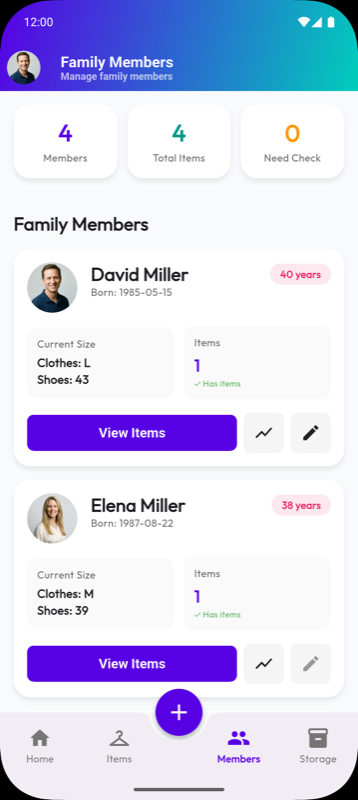
To add a family member, go to your Profile screen and verify your Family ID. If you are the admin or in a solo family, you can invite others by sharing your Family ID or creating a new family group.
Navigate to the Scanner or Items tab, and select "Create New Box". You can generate a QR code for the box and assign items to it.
Yes! Everyone in your Family Group has access to the shared inventory. Changes made by one member are instantly visible to others.
Absolutely. We use Google Firebase for secure authentication and data storage. Your data is encrypted and protected.
Tutorials
Explore our step-by-step guides to master SeasonBox.
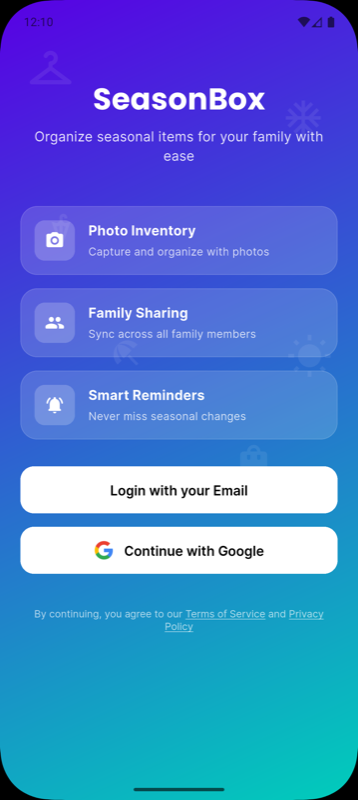
1. Create an Account: Sign up using email or
Google.
2. Set up Profile: Add your details and
adjust settings.
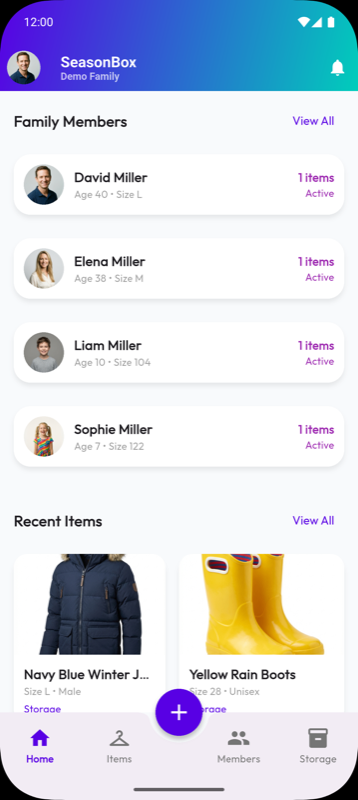
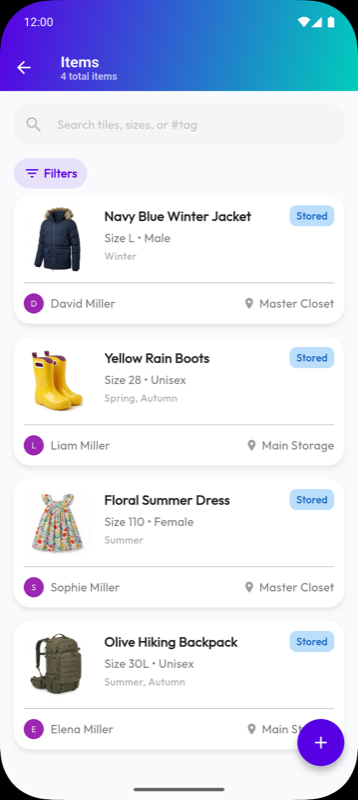
3. Create Inventory: Start adding items and
boxes.
Tap the Scanner icon in the bottom navigation bar. Point your camera at a SeasonBox QR code to instantly view the contents of a box.
1. Go to Profile: Tap on the Profile
icon.
2. Find Family ID: Locate your unique
Family ID in the Family Management section.
3. Share ID: Share this ID with family
members you want to invite.
4. They Join: They enter this ID in
their profile to join your family group.
Contact Us
Have a suggestion or found a bug? Let us know!